Get Second Opinions in Claude Desktop
Trust, but verify. Add MultiSage as a connector and Claude can consult GPT and Gemini without breaking your flow.
Why Get a Second Opinion?
Every AI model has different training, strengths, and blind spots. When the stakes are high or the question is ambiguous, a single perspective might miss something important.
Catch Blind Spots
Ensure you haven't missed anything important. Different models notice different things—what Claude overlooks, GPT or Gemini might catch.
Make Better Judgment Calls
When making decisions, get diverse expert perspectives. See where models agree (high confidence) and where they differ (worth investigating).
How It Works
Once connected, just say "I need a second opinion" in any Claude conversation:
- 1.Claude sends your question to MultiSage in the background
- 2.GPT and Gemini analyze it with fresh perspectives
- 3.Claude synthesizes all viewpoints into one comprehensive answer
Takes about 10 seconds—a small pause to save hours of second-guessing.
Setup Guide
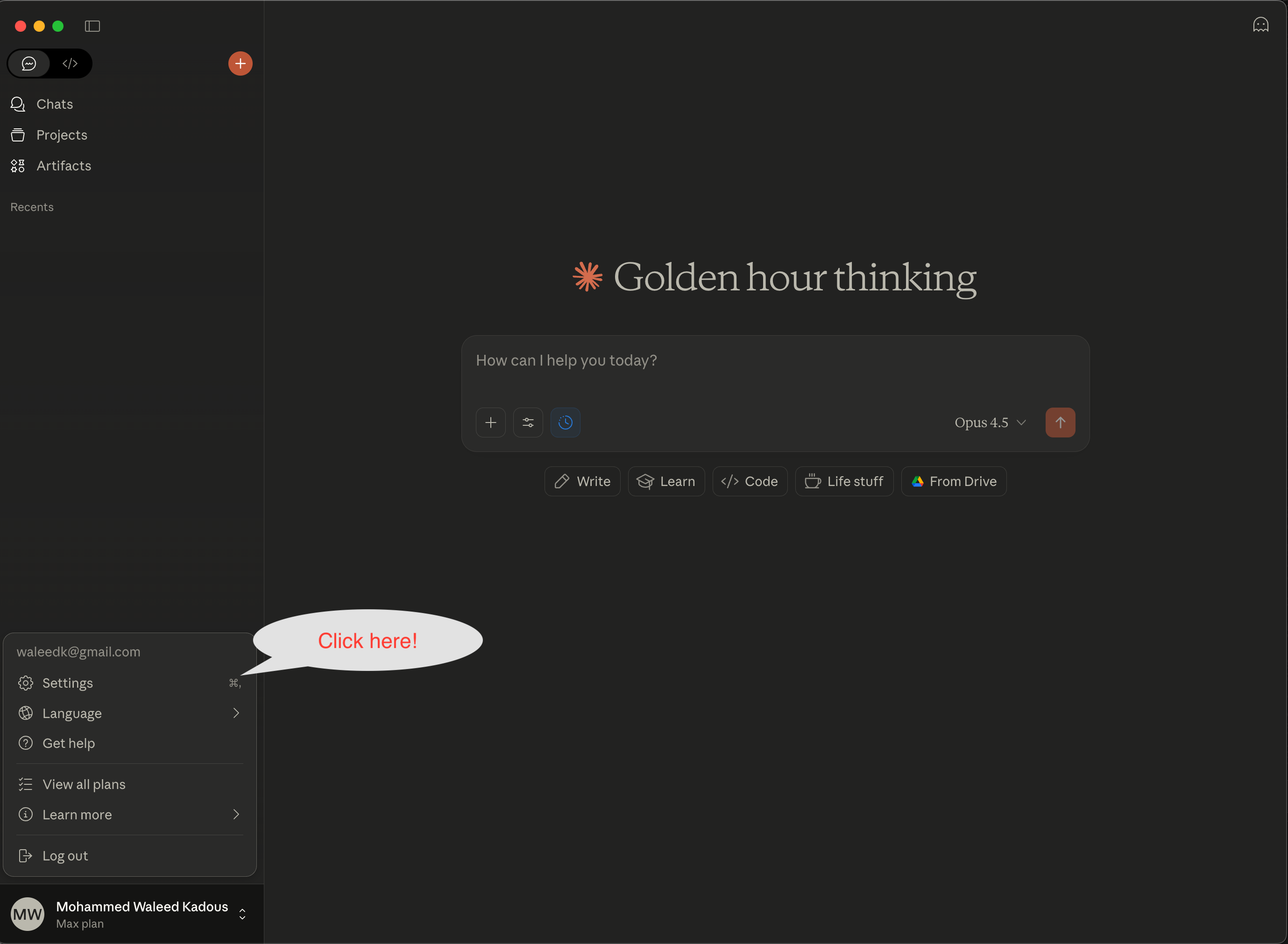
Step 1: Open Settings
In Claude Desktop, click your profile icon in the bottom-left corner and select Settings.
Step 2: Go to Connectors
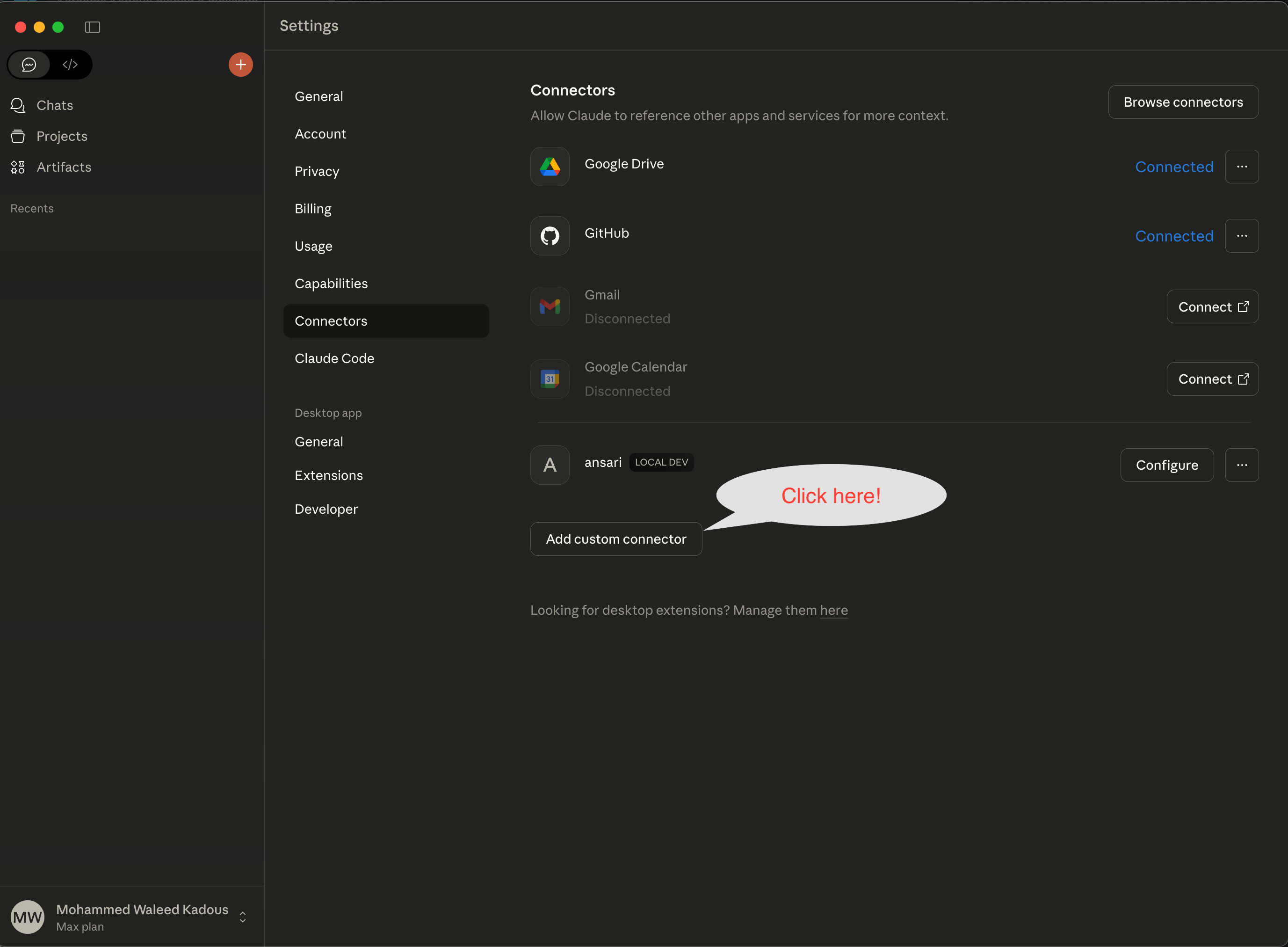
In the Settings sidebar, click Connectors.

Step 3: Add Custom Connector
Click the Add custom connector button at the bottom of the connectors list.
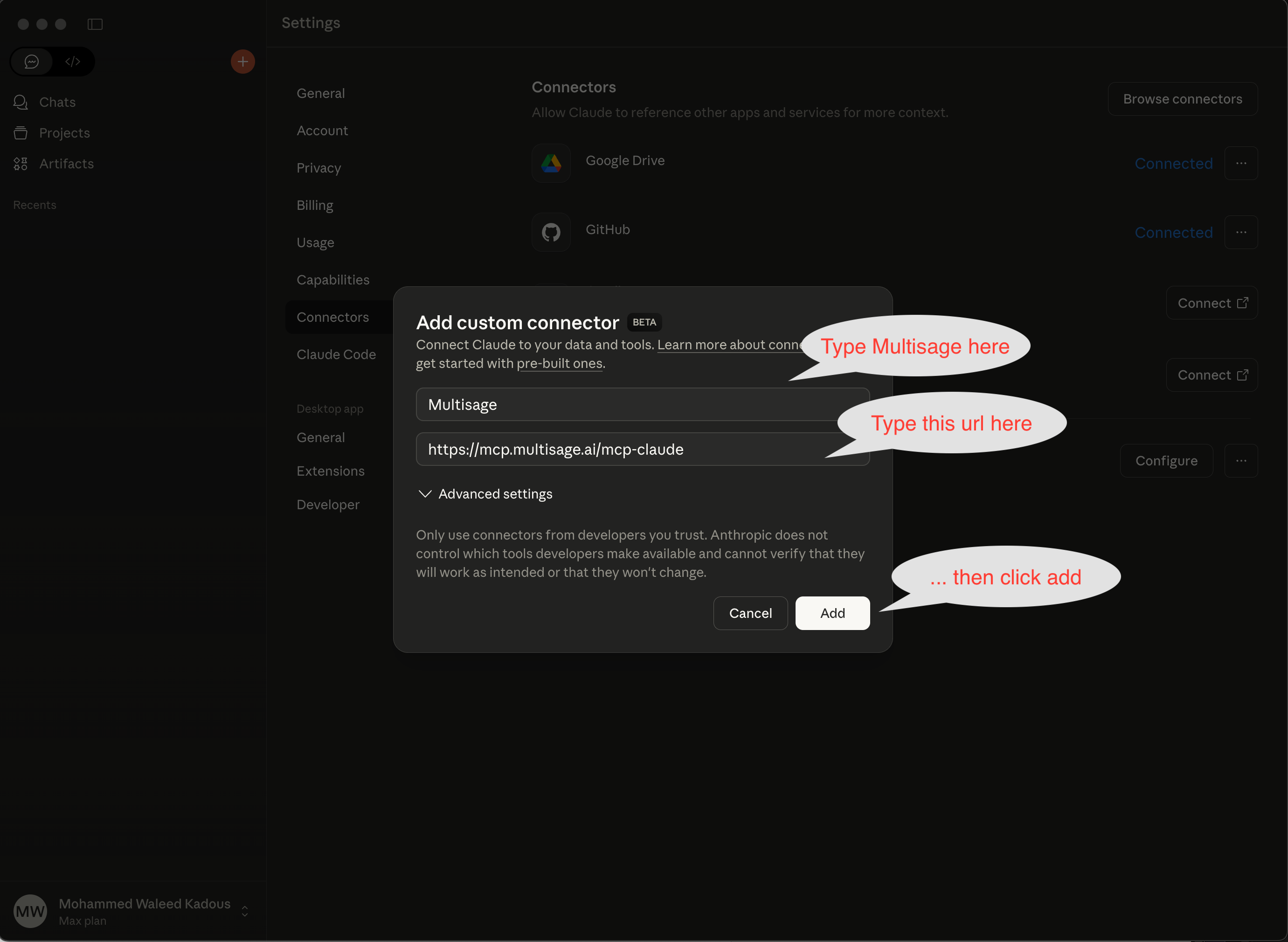
Step 4: Enter Connection Details
In the dialog that appears, enter the following:
Click Add to save.
Step 5: Connect Your Account
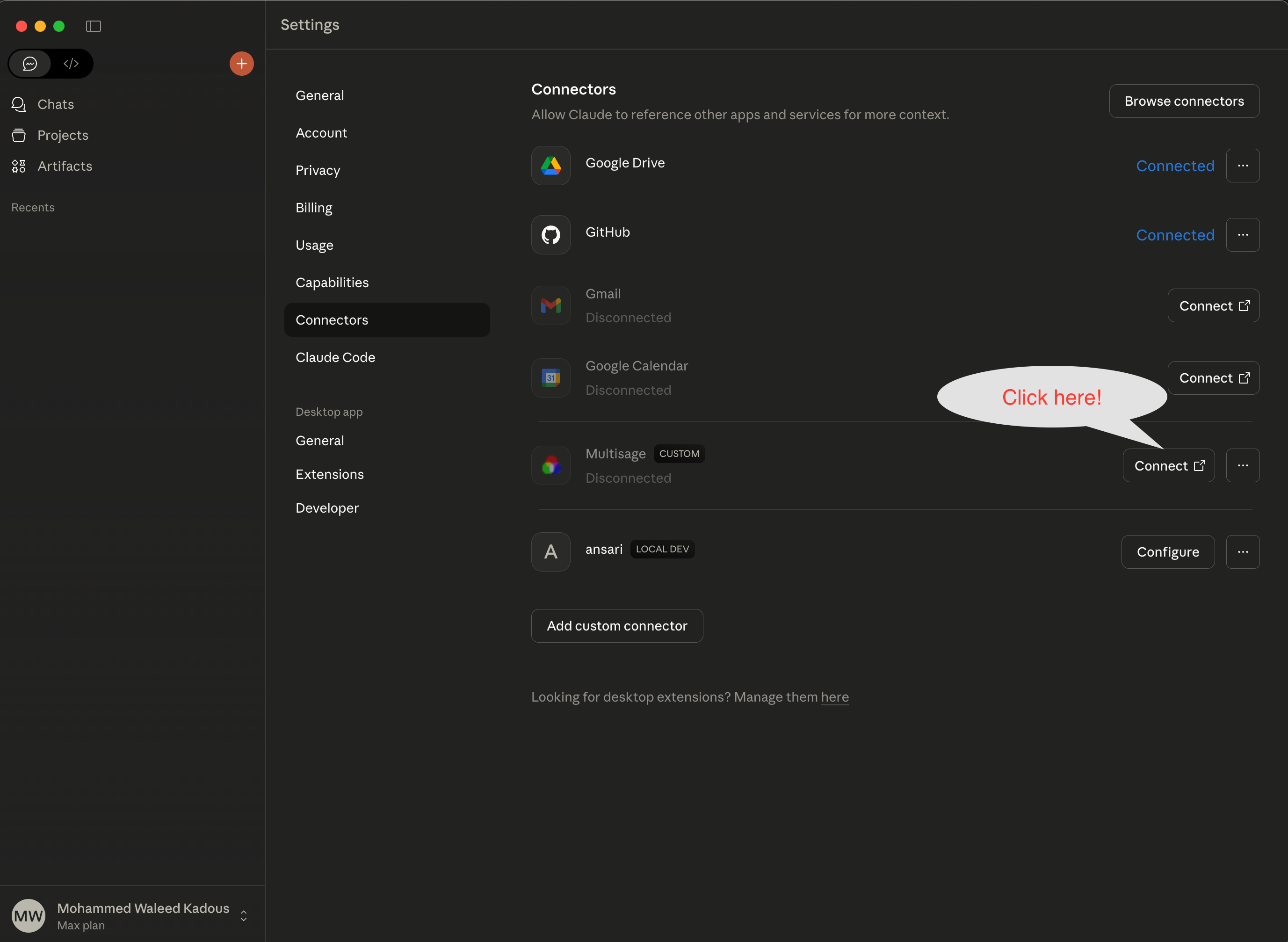
Find "Multisage" in your connectors list and click Connect. This opens your browser to sign in with your MultiSage account.
Don't have an account? Sign up free — you get 10 credits/month at no cost.
Step 6: Verify Connection
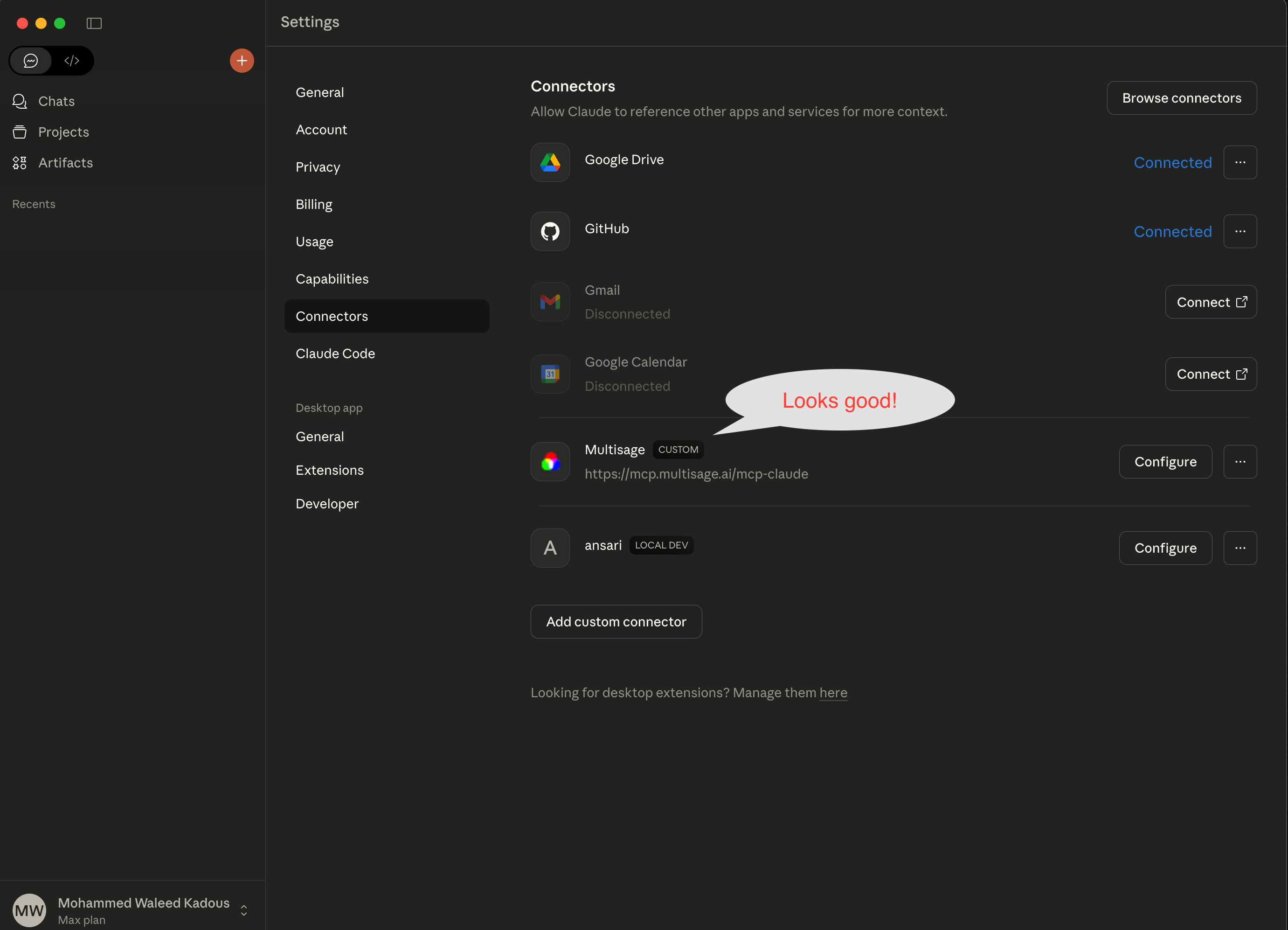
After authenticating, you should see Multisage listed with a Configure button (instead of Connect). This means you're connected!
Step 7: Enable the Tool
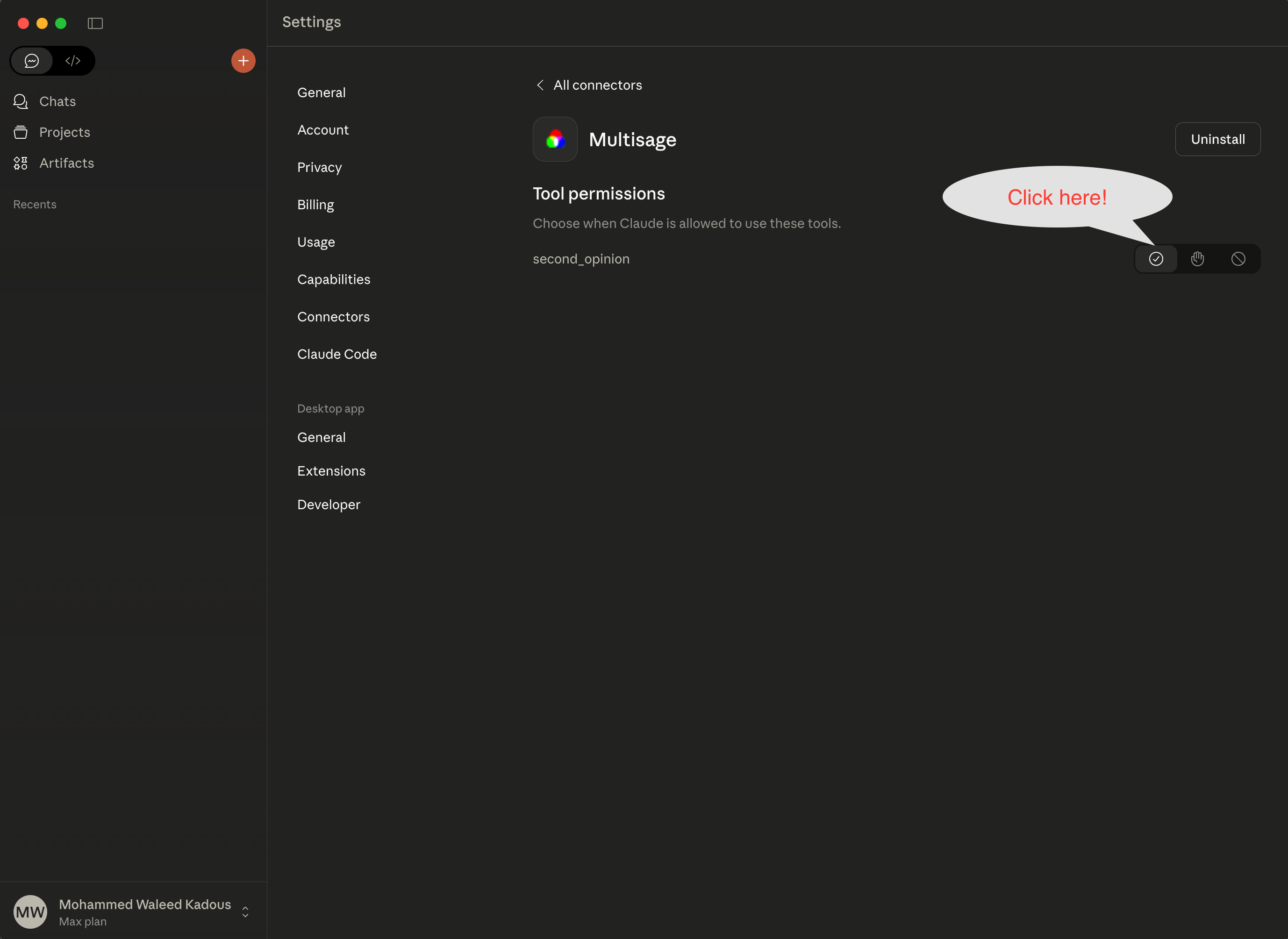
Click Configure next to Multisage. You'll see a "Tool permissions" section with second_opinion. Click the checkmark to enable it.
Done! Start Using It
You're all set! In any conversation, just say "I need a second opinion" and Claude will consult GPT and Gemini for you.
Example Usage
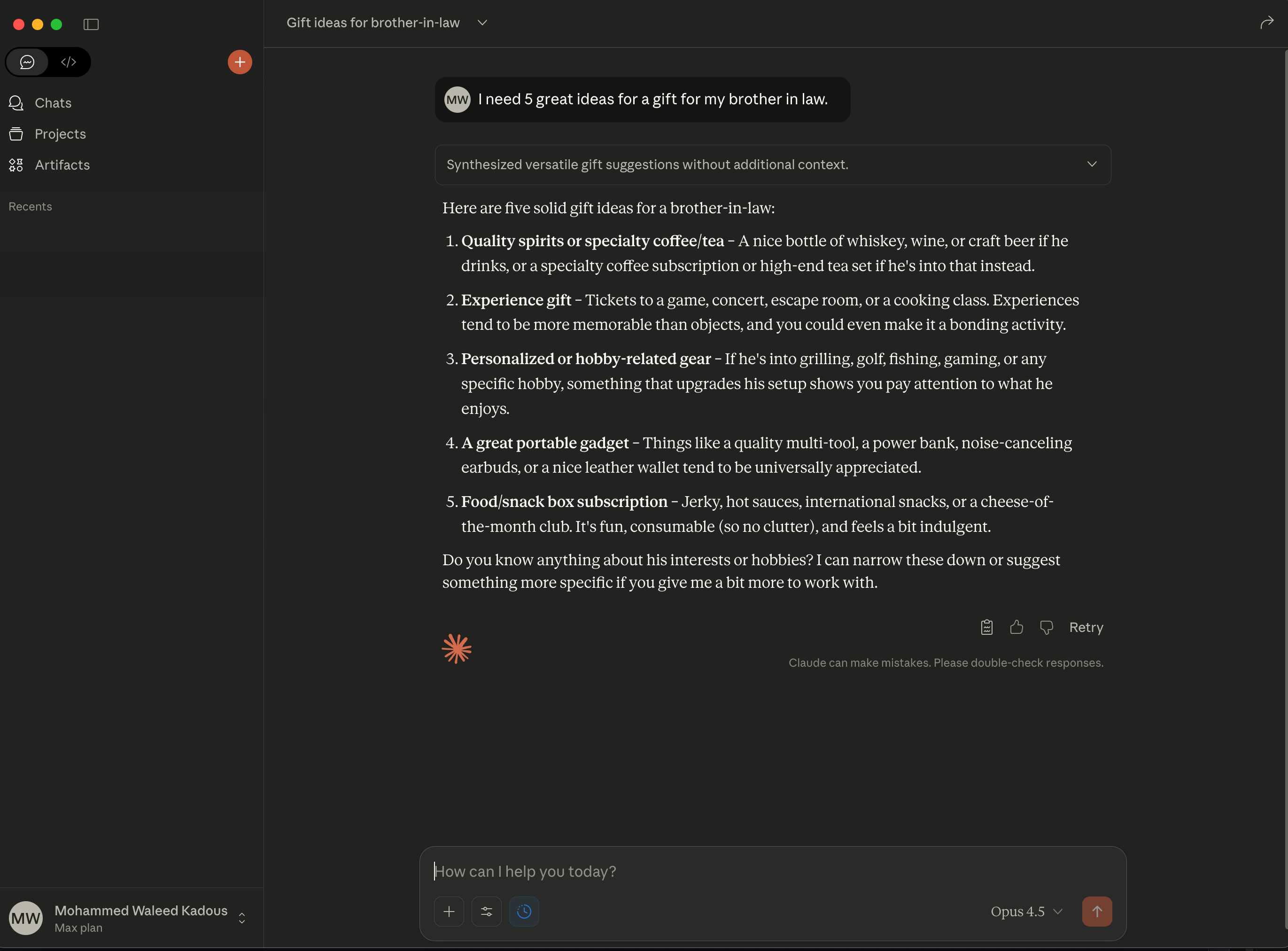
Here's what it looks like in action. First, ask Claude a question:
Then, type "I need a second opinion" to get perspectives from GPT and Gemini:
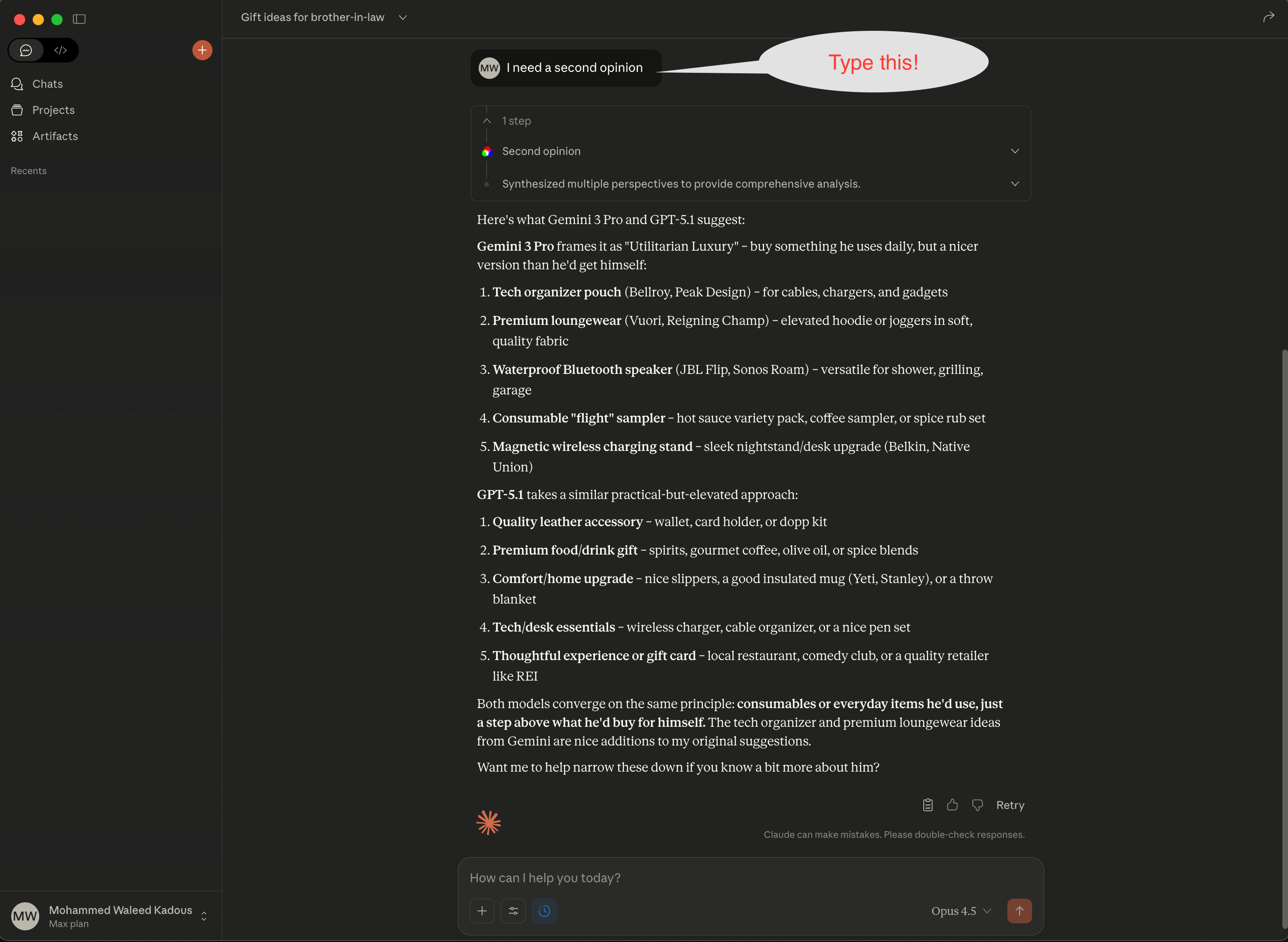
Claude synthesizes the responses from all models, showing you where they agree and offering additional perspectives you might have missed.
Pricing
Each "second opinion" request uses 1 MultiSage credit.
- -Free tier: 10 credits/month (no credit card needed)
- -Starter: $19/mo for 40 credits
- -Pro: $39/mo for 100 credits
Your Claude Desktop subscription is separate—MultiSage credits are only for the second opinion feature.
Ready to Trust, but Verify?
Sign up free and connect MultiSage to Claude Desktop in under 2 minutes.
Troubleshooting
Connector not appearing?
MCP connectors work in both Claude Desktop and Claude Web. Make sure you're on a paid Claude plan that supports connectors.
Connection failed?
Check that the URL is exactly https://mcp.multisage.ai/mcp-claude. If issues persist, try removing and re-adding the connector.
Still having issues?
Contact us at [email protected]